View NC toolpaths in your browser
CNC Path Analyzer is a free web tool that draws the toolpath from a lathe or machining center NC program (G-code) you paste into it. It distinguishes rapid traverse from cutting moves. Press Play to follow the path in block order and see the source line for each move.
Programs are interpreted only inside your browser and are never sent to a server. It works right away on PCs and smartphones, with no installation or sign-up.
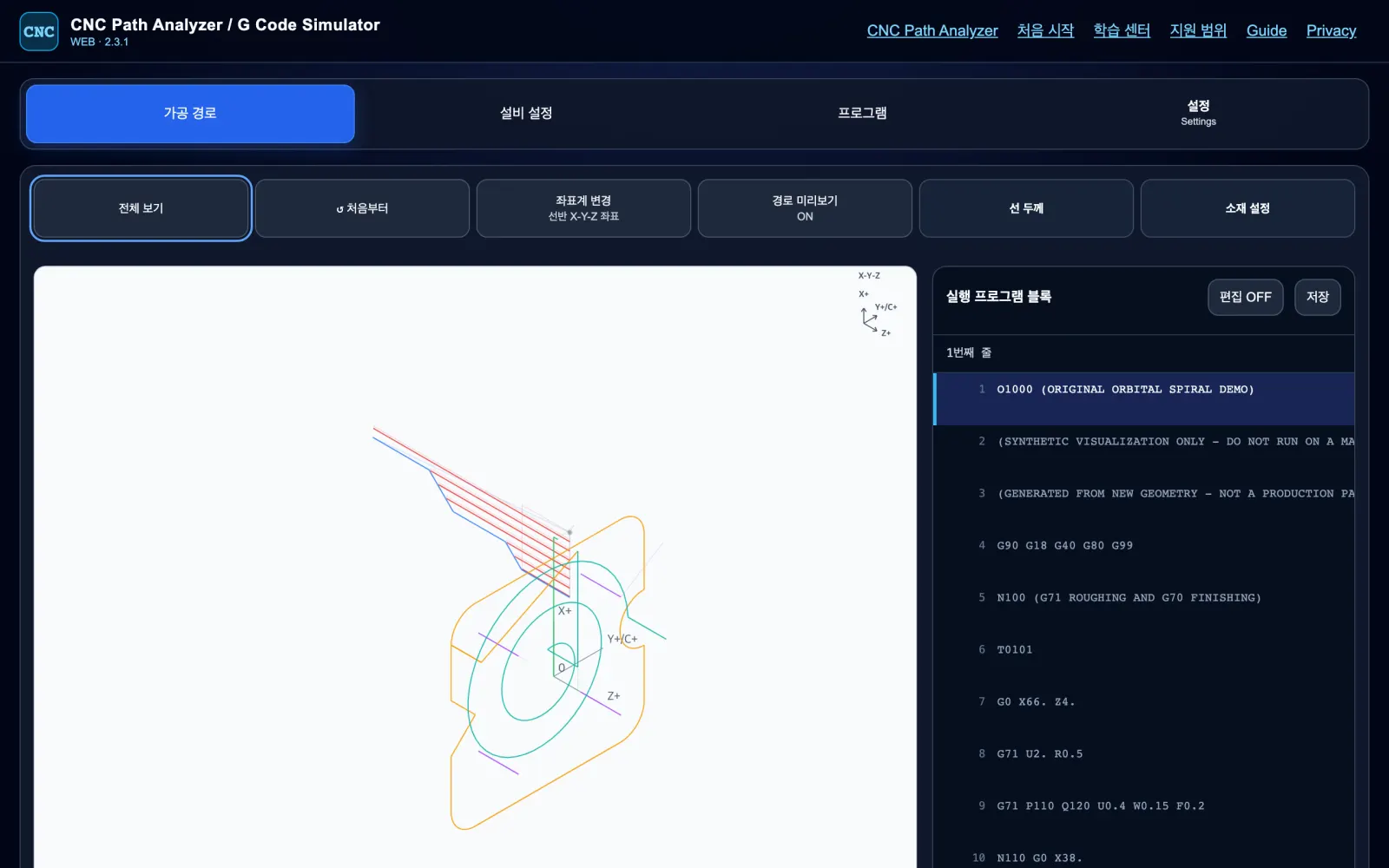
Key features at a glance
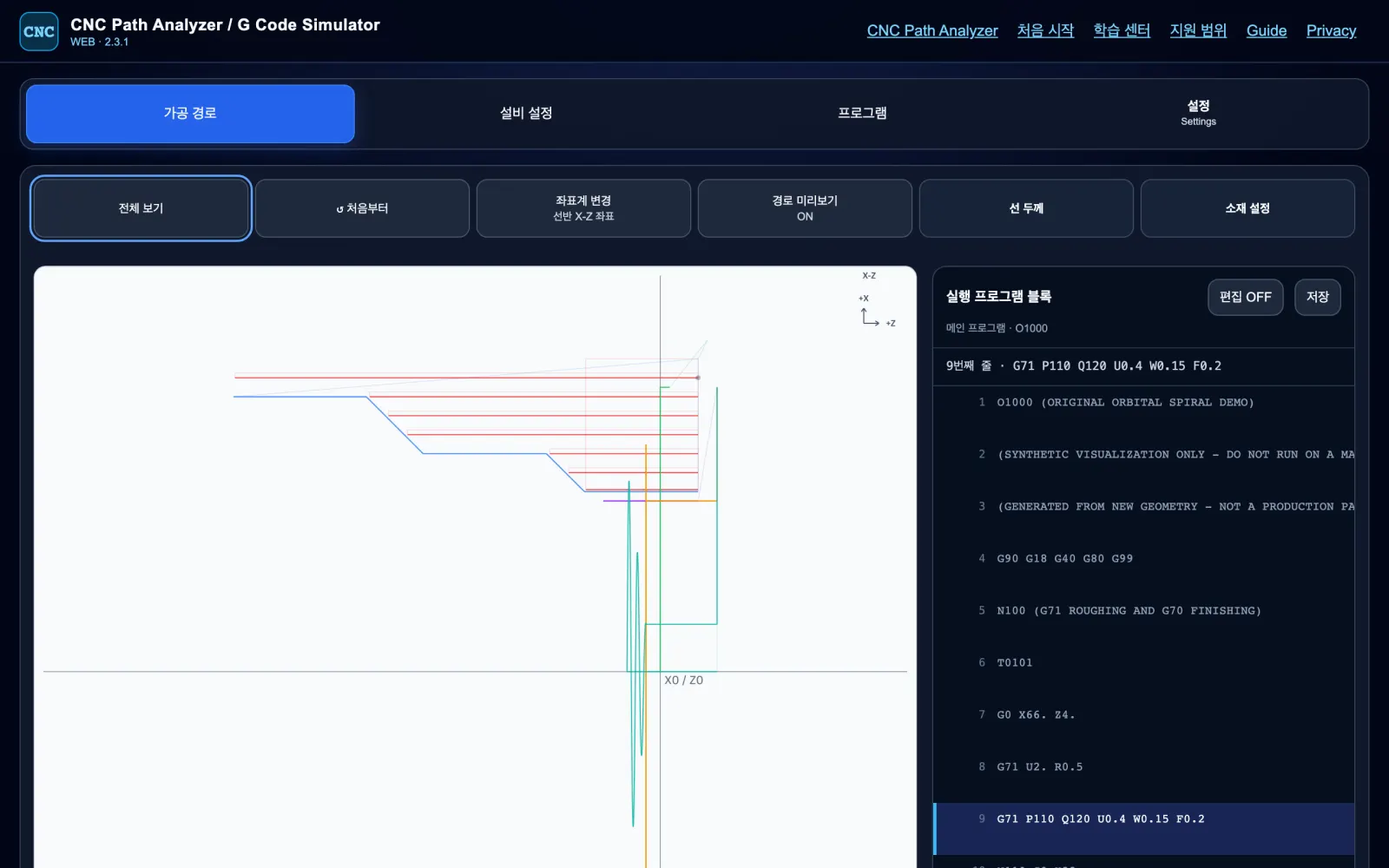
Lathe sections and canned cycles
See how a one-line cycle such as G71 roughing expands into individual cutting passes on the X-Z section.
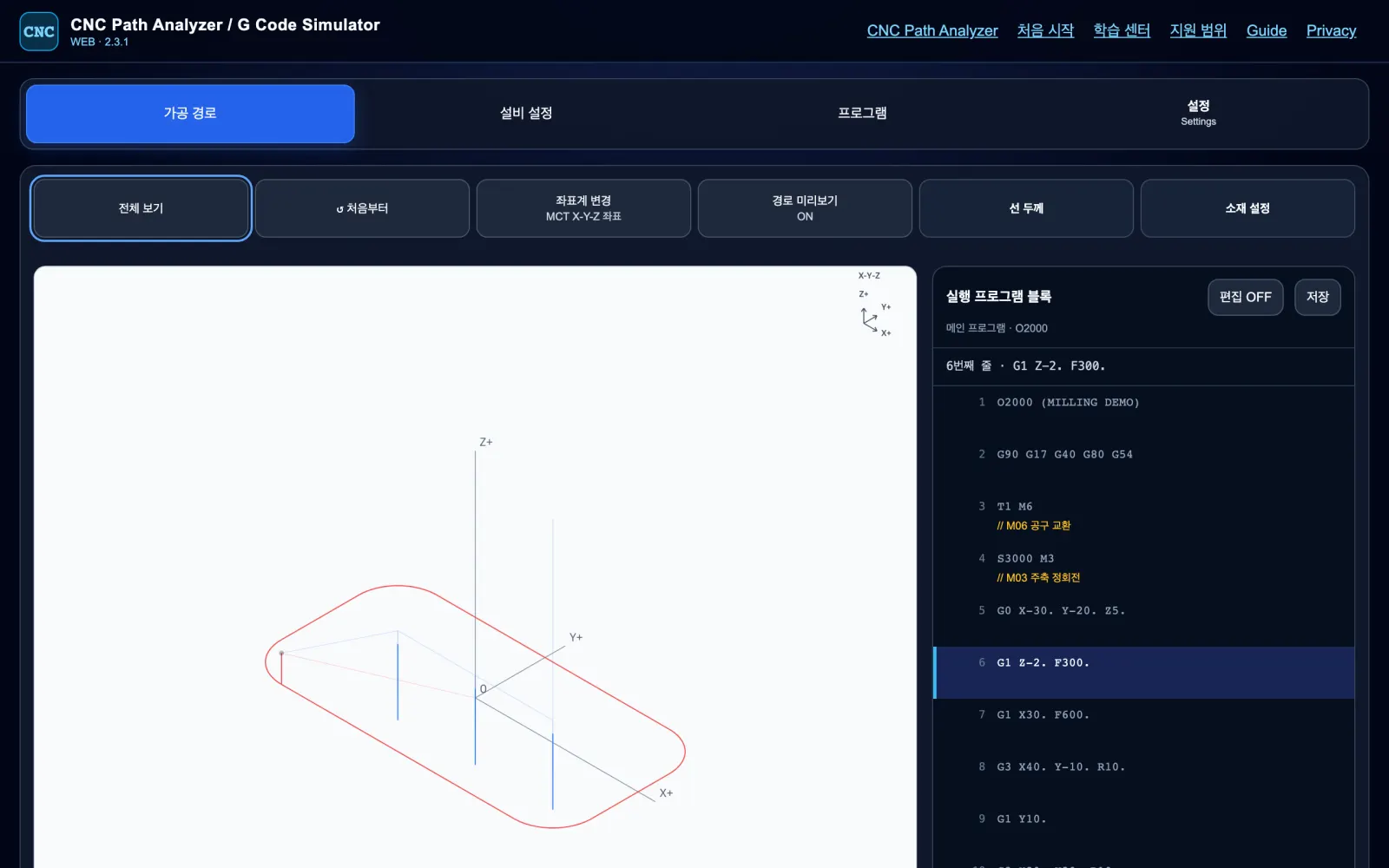
Machining-center XYZ paths
Contours and G83 drilling positions are drawn in 3D, so vertical moves are visible at a glance.
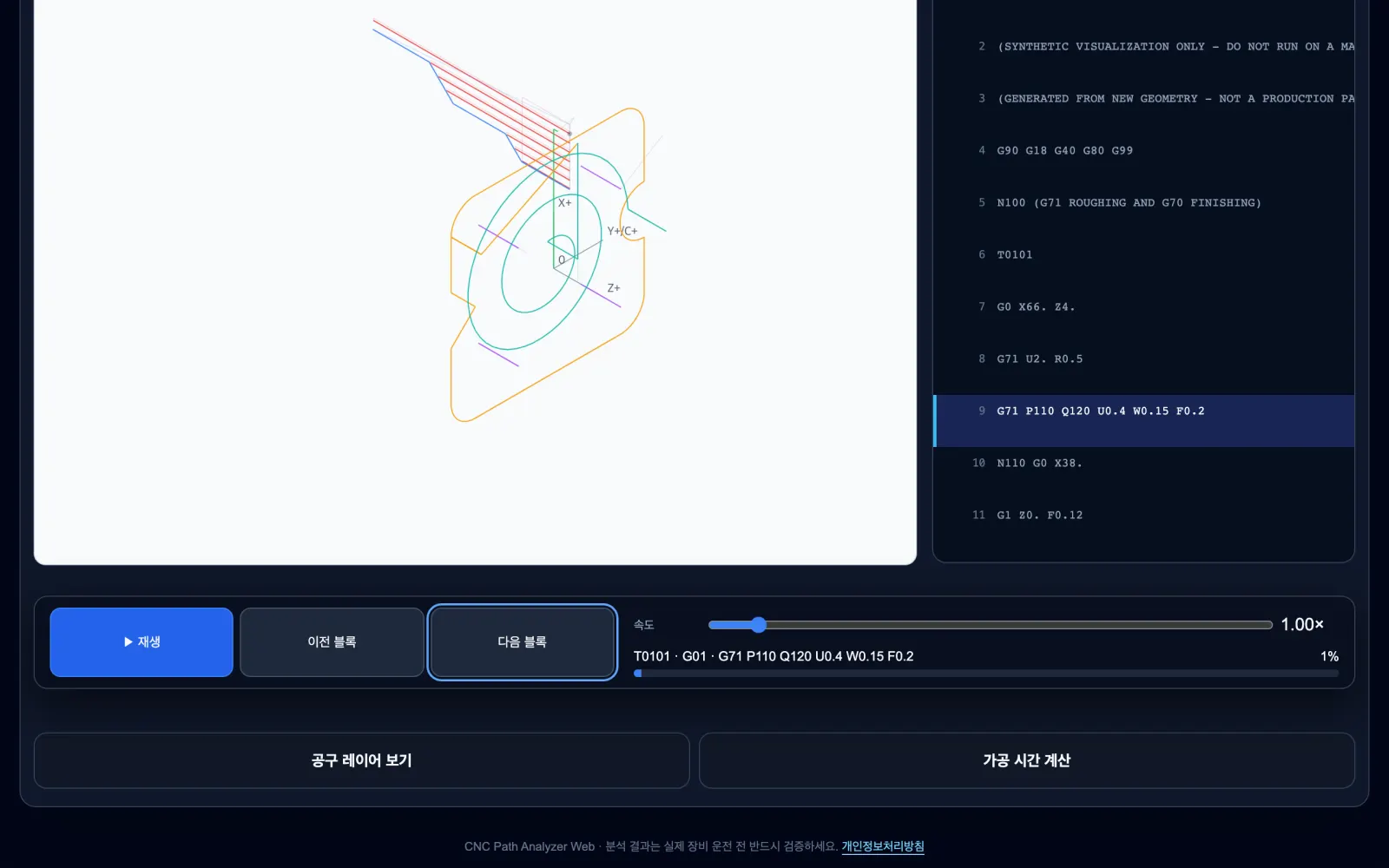
Block-by-block playback
Step through the path with Play, Previous and Next, while the matching source line is highlighted in the list.
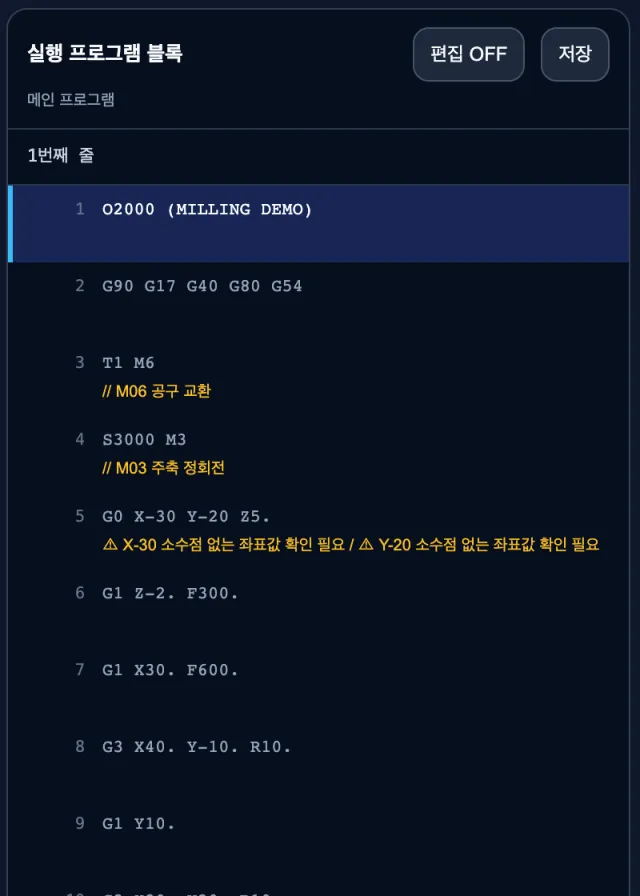
Lines that need checking
If a line contains a value that machines may interpret differently, such as a coordinate without a decimal point, a warning appears directly below it.
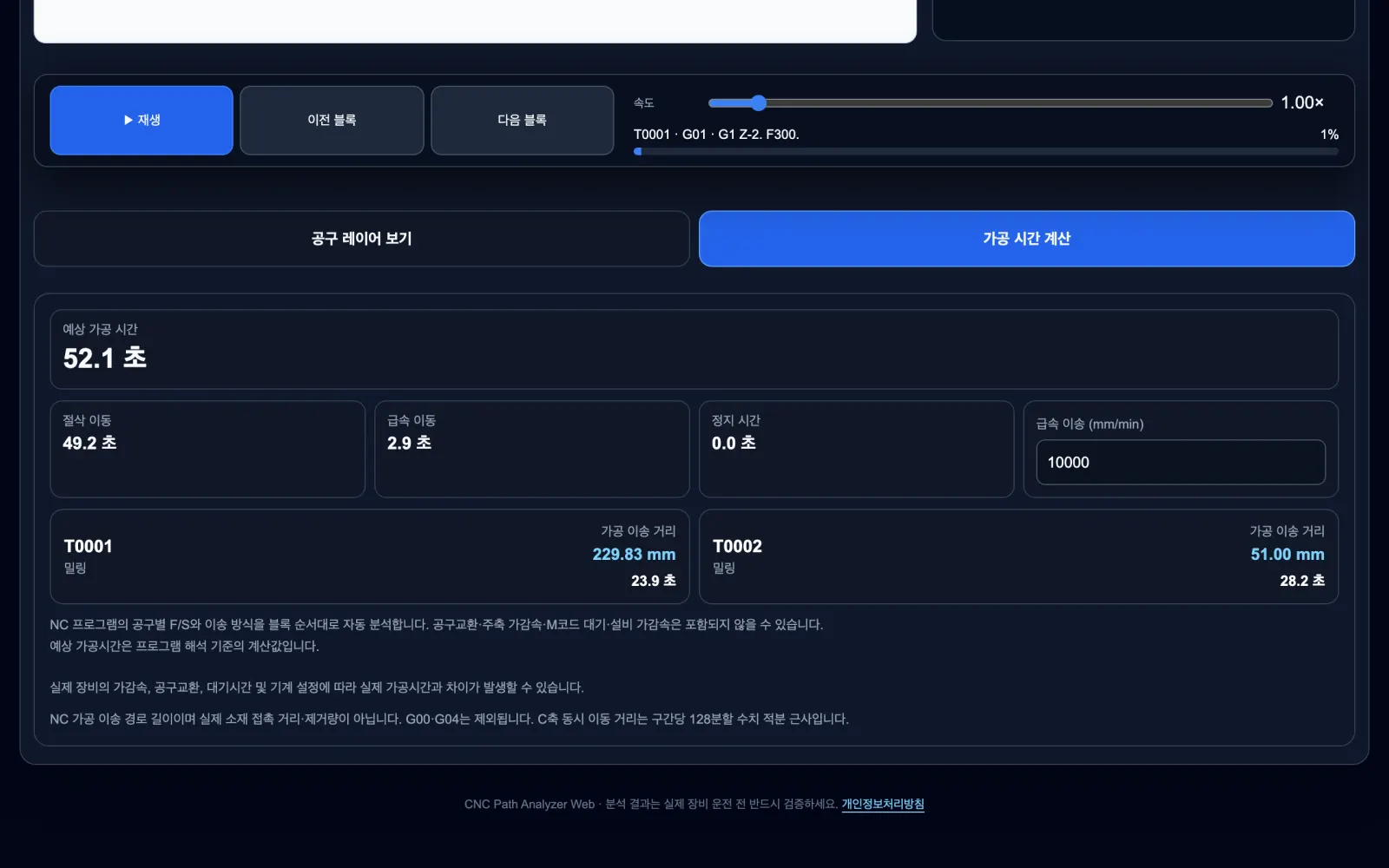
Estimated machining time per tool
Cutting and rapid time are calculated separately, with travel distance and time listed for each tool.
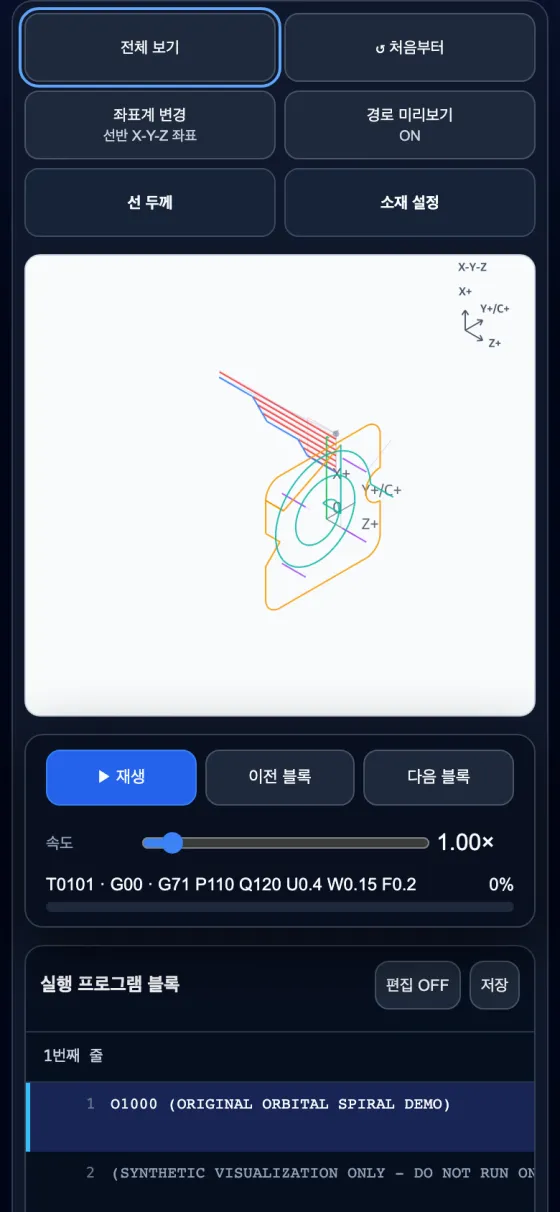
The same tool on a phone
Open it in a mobile browser without installing anything, then pinch and drag to inspect the path.
When to use it
- Initial check before running on a machine: quickly spot mistakes that are hard to see in program text, such as coordinate typos, missing decimal points or arcs in the wrong direction.
- Understanding cycles: see the actual path produced by canned cycles such as G71, G72, G76 and G83, where one line expands into dozens of moves.
- Training and handover: show newcomers how commands relate to tool movement, or quickly grasp the flow of a program written by someone else.
- Machining time estimates: calculate an approximate machining time under supported feed and spindle speed conditions.
How to use it
- In the machine settings, choose a lathe (CNC lathe, Swiss-type) or milling machine (machining center) and the controller family. The same G-code can mean different things on different machine types.
- Paste the NC program into the program tab or open a file.
- Open the toolpath view, then use Fit View, Play and Previous/Next Block to compare the path with the source program.
- If a warning appears, check the cause line and the cycle call line first. The interpretation rules are summarized in Supported scope and limitations.
Use it on a PC, smartphone or Android app
The same screen works in a PC browser and on a smartphone. On a phone, pinch with two fingers to zoom and drag with one finger to pan; long programs can be loaded from a file. There is also an Android app that uses the same interpretation engine, so the browser and the app show the same path for the same program under the same rules.
What a toolpath drawing cannot tell you
The path drawing is an interpretation of the commands written in the program. It does not know the actual tool lengths, work offsets, chuck and fixture shapes or axis acceleration of the real machine, so it does not judge collisions or whether a part can be machined. On the shop floor, single-block dry runs and the machine manual always come first.
Supported machines and controllers
You can choose CNC lathes, Swiss-type automatic lathes, machining centers and multitasking machines. Support focuses on FANUC controllers and includes some YASNAC, Mitsubishi, Siemens and Heidenhain formats. Address meanings can vary between controllers even for the same G-code, as with corner R commands in G01 or R in lathe drilling cycles. The tool therefore follows the rules of the controller selected in the machine settings. For unverified formats, it explains why a path cannot be drawn rather than guessing the motion.
Lathe programs are shown as a section view with Z horizontal and X (radius) vertical; machining center programs can be viewed in the XY plane or in 3D XYZ. Tool layers that color paths by tool number, loading subprograms (M98) called by the main program, and editing and saving source lines are also supported.
Mistakes you can spot in a toolpath drawing
- Missing decimal points: some machines read
X20as 0.02 mm, so the tool flags coordinates without a decimal point for review. - Absolute/incremental mode mix-ups: forgetting to cancel
G91, so the path continues from an unexpected place. - Arc direction and radius sign: swapping G02 and G03, or using a positive R for an arc larger than 180°.
- Cycle profile errors: a G71/G72 profile that does not change in one direction only, or a start point inside the profile.
If you are new to G-code
The Learning Center collects explanatory articles with engine-verified examples and path drawings, from rapid and cutting feed, circular interpolation and lathe diameter programming to multiple repetitive cycles and drilling and tapping cycles. If you are just starting, begin with the difference between G00 and G01.